Site Editor basics
Use Appearance → Editor to change the shared design of your site. Use Pages or Rooms to change the content of an individual page or room.
On this page
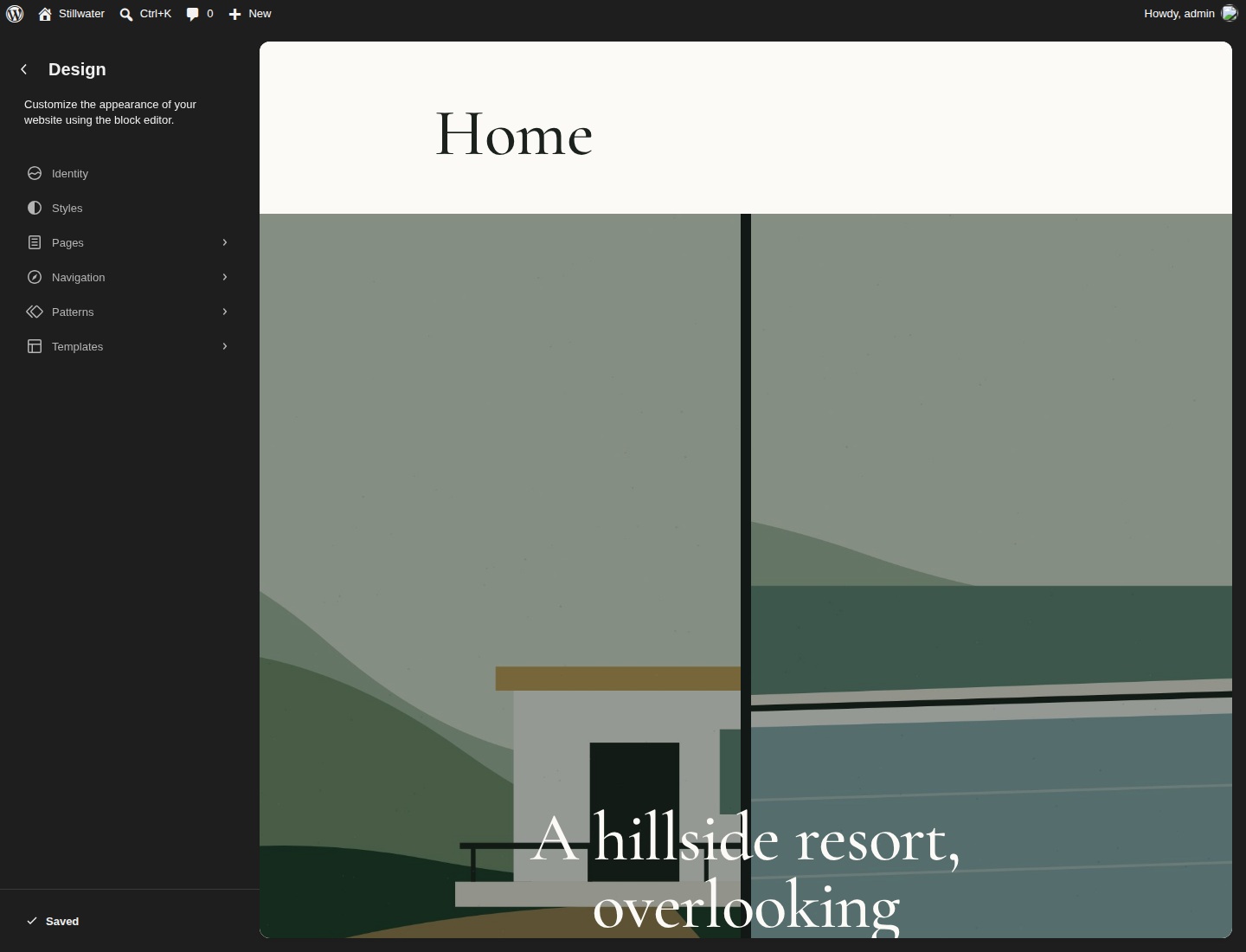
Find your way around
The Site Editor includes Navigation, Styles, Pages, Templates and Patterns. Labels can vary slightly by WordPress version. Open List View to select a block that is difficult to reach in the canvas. Use the settings sidebar to adjust the selected block.
A template is a page layout. A template part is a shared section, such as a header. A pattern is a starting arrangement of blocks. Editing a shared header changes every template that uses that header.
Choose a template
When editing a page, open its settings sidebar and select Template. Choose the layout that fits its content.
| Template | Use it for |
|---|---|
| Pages | A normal page with an automatic title and featured image. |
| Page without title | A starter page pattern that already includes its own heading. This avoids a second title. |
| Landing page | Either full-page Home pattern. Its header sits over the hero. |
| Wide page | Content that needs the wider 80rem layout, with a page title. |
| Page with sidebar | A page or post with a main column and journal sidebar. |
The theme also supplies layouts for the posts index, single posts, archives, search results, missing pages and MotoPress accommodation details and listings. Haldane Toolkit supplies room templates while active.
Three headers and two footers
- Header: site identity on the left, navigation and a booking button.
- Header: centred logo: site identity between the navigation areas.
- Header: over image: a header designed to sit over the opening hero, used by the Landing page template.
- Footer: booking invitation, contact and navigation columns, social links and a mobile booking bar.
- Footer: minimal: a shorter footer with essential links.
- Open Appearance → Editor → Templates and choose a template.
- Select its header or footer in List View.
- Use the block toolbar's replacement option to select another part. If your WordPress version does not show it, remove that part block and insert a Template Part block with the replacement.
- Save and review the list of changes before confirming.
Changing the header used by one template does not replace headers in every other template. Edit each layout that should use it. Replace fictional contact text and empty social links in both footers if you use both.
Edit navigation menus
- Open a header in the Site Editor and select its Navigation block.
- Add a page link with the plus control, or select an existing link to edit it.
- Use List View to reorder links. Select the Navigation block's menu control to choose an existing menu.
- Check both navigation blocks if you use the centred header.
- Save, then test the desktop links and mobile menu.
The footer has its own navigation. Demo import connects menus to the header and footer parts. Without an import, update the sample links to pages you have actually published.
Change the logo and site title
Select the Site Logo block in a header, then upload or choose your logo. Select Site Title to edit the name. The title also appears in Settings → General. Keep readable logo proportions and check the header on a phone. A Site Logo and the browser's Site Icon are separate settings unless you choose to use the logo as the icon.
Global styles and five looks
Open Appearance → Editor → Styles and browse styles. The default Stillwater look uses botanical green, warm canvas, Cormorant Garamond headings and Inter body text. Four variations are included:
- Lagoon: cool water and teal.
- Terracotta: warm clay and cream.
- Ivory: pale stone and quiet dark text.
- Night: dark canvas and light text.
All five keep the same heading and body font families. Fonts are local, with Latin and extended Latin coverage. Change Typography and Colours in Styles, save, then check your pages on desktop and mobile.
The default header places two navigation areas around the site title. The left navigation contains the complete mobile menu. Update both menus when changing links. The landing page uses a full-height hillside slideshow with a pause control.
Save and reset changes
WordPress shows which templates, parts and styles will be saved. Read that list before confirming. Saved Site Editor changes take precedence over the theme's files. To restore a supplied layout, use the template's reset or clear-customisations control. Export or copy your changes first because a reset removes those saved edits.